 Cosmil
Like cut and paste, this is a command Finder has had for years and simply never shows you. Nothing in the visible menu says “copy path” — until you’re already holding the one key that reveals it.
The hidden menu item#
Right-click (or two-finger click) the file or folder.
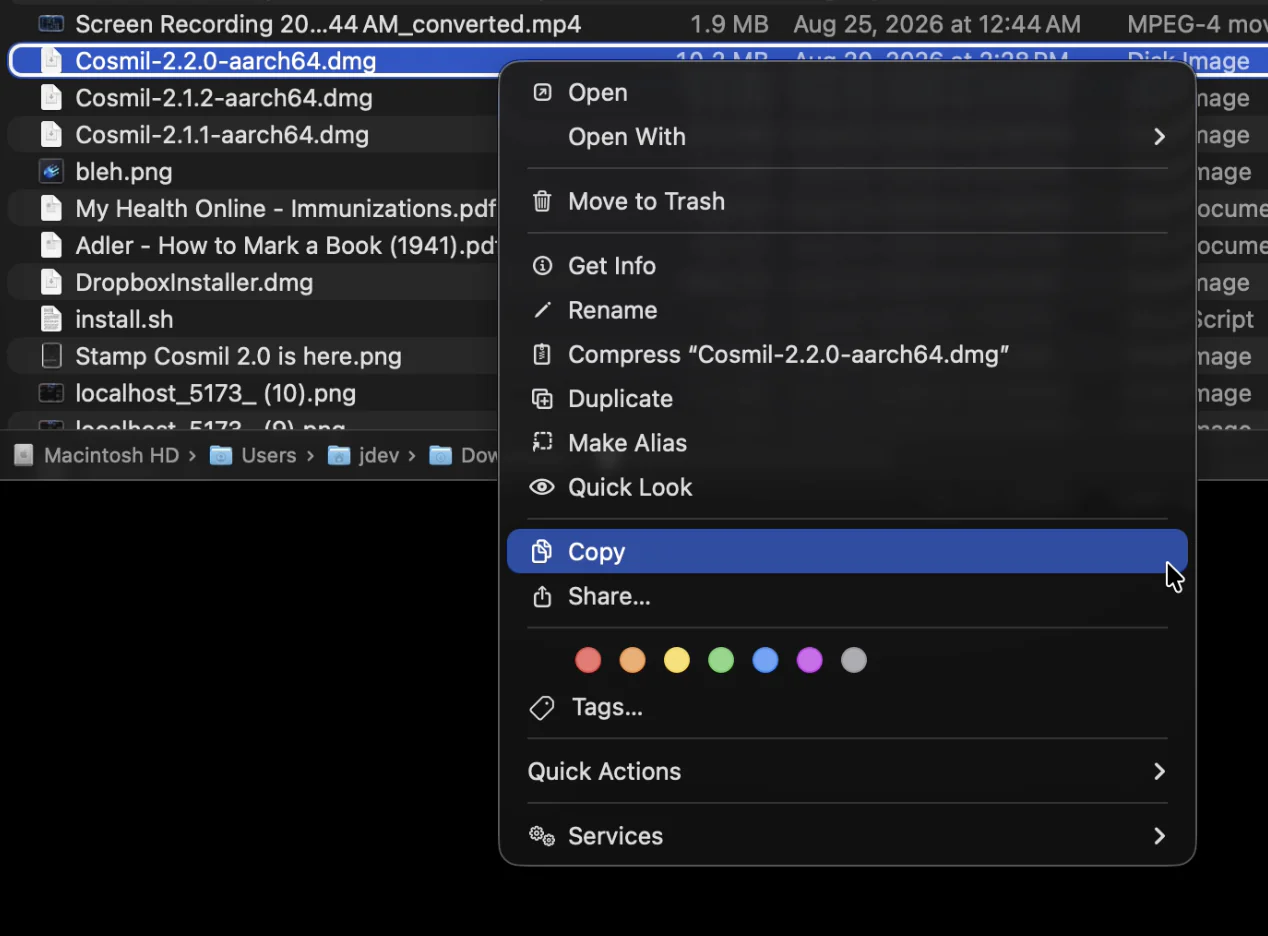
With the menu open, press and hold ⌥.
Copy becomes Copy “name” as Pathname — click it.
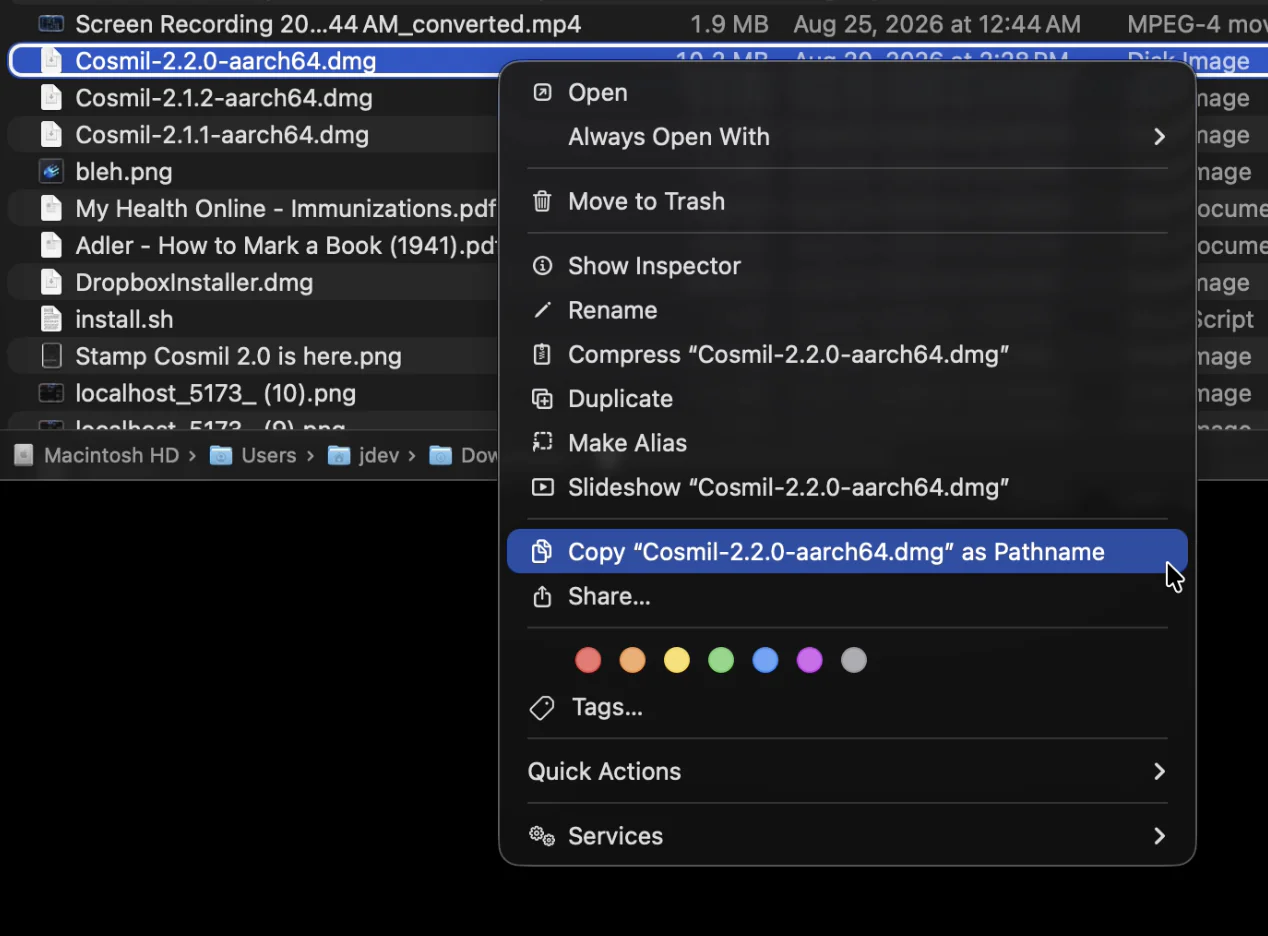 Half the menu swaps at once while the key is down — Get Info turns into Show Inspector, Open With into Always Open With — so don’t take the other changes as a sign you did it wrong.
You get the full path, like /Users/jdev/Downloads/Cosmil-2.2.0-aarch64.dmg. Select multiple files first and you’ll get every path, one per line.
The keyboard shortcut#
Once you know it exists, skip the menu entirely: ⌥⌘C copies the pathname of whatever is selected.
Drag anything into Terminal#
If the path is destined for a command anyway, don’t copy it at all — drag the file from Finder straight into a Terminal window. Its full path appears at the cursor, with spaces and special characters already escaped. This works mid-command: type cd, drop a folder onto the window, hit return.
Get Info, for when you want the enclosing folder#
Select the file and press ⌘I. The Where line in Get Info shows the path to the containing folder — click it, select it, and copy. Rarely the fastest route, but useful when the folder is what you were after, or when you want to see the path spelled out before trusting it.
Pasting paths back in#
The reverse direction is hidden behind the same kind of trick, and worth knowing while you’re here:
- In Finder, press ⌘⇧G (“Go to Folder”), paste a path, and jump straight to it. Recent macOS versions fuzzy-match as you type.
- The same ⌘⇧G works inside Open and Save dialogs — paste a path instead of clicking through folders.
- Dragging a folder onto an Open/Save dialog retargets the dialog to that folder.
One right-click, no gymnastics#
None of this is hard once you know it — the friction is that every piece hides behind a modifier key or a drag trick you have to be told about.